Command Palette
Search for a command to run...
Open-AutoGLM: Smart Assistant for Mobile Devices
1. Tutorial Introduction

Open-AutoGLM is a mobile intelligent assistant framework released by Zhipu AI in November 2024, built upon AutoGLM. This framework can understand mobile screen content in a multimodal manner and assist users in completing tasks through automated operations. Related research papers are available. AutoGLM: Autonomous Foundation Agents for GUIs .
Unlike traditional mobile automation tools, Phone Agent uses a visual language model for screen perception, combined with intelligent planning capabilities to automatically generate and execute operation processes. The system controls the device through ADB (Android Debug Bridge). Users only need to describe their needs in natural language, such as "open Xiaohongshu to search for food," and Phone Agent can automatically parse the intent, understand the current interface, plan the next action, and complete the entire process.
The system also has a built-in sensitive operation confirmation mechanism and supports manual takeover in login or CAPTCHA scenarios. Additionally, it provides remote ADB debugging capabilities, enabling flexible remote control and development via WiFi or network connection.
This tutorial supports the following models and functions:
2 model checkpoints:
- AutoGLM-Phone-9B (Chinese Optimized Version) (Default)
- AutoGLM-Phone-9B-Multilingual (Multilingual Version)
Core functions:
- Supports automated operations for 50+ mainstream Chinese applications.
- Multimodal screen understanding and intelligent decision-making
- Natural language interaction, no script writing required.
- Supports USB and WiFi remote control
- Sensitive operation confirmation and manual takeover mechanism
This tutorial uses a cloud-based deployment model, with local automated control of the mobile phone achieved through API calls.
⚠️ Important Note: This project is for research and learning purposes only. It is strictly prohibited to use it for illegally obtaining information, interfering with the system, or any illegal activities.
2. Project Examples
Typical application scenarios
Phone Agent can automate a variety of daily tasks:
E-commerce shopping:
- Open Taobao and search for wireless headphones.
- Searching for phone cases on JD.com
Food delivery:
- "Open Meituan and search for nearby hot pot restaurants"
- Order a milk tea on Eleme.
Social content:
- "Open Xiaohongshu and search for food guides"
- Searching for fitness videos on TikTok.
Travel services:
- "Open Amap (Gaode Maps) and navigate to the nearest coffee shop."
- "Checking train tickets to Shanghai for tomorrow"
3. Operation steps
If the model service displays "Bad Gateway", it means that the model is initializing. Please wait about 5-10 minutes and try again.
Steps 1 and 2 are now complete. Please proceed to step 3.
1. Local environment configuration
Step 1: Pull the project
git clone https://github.com/zai-org/Open-AutoGLM.git
cd Open-AutoGLM
Step 2: Install Python dependencies
It is recommended to use Python 3.10 or later.
pip install -r requirements.txt
pip install -e .
Step 3: Install ADB (Android Debug Bridge)
macOS users:
- Download the official ADB Installation package
- Extract to a custom path (e.g.)
~/Downloads/platform-tools) - Configure environment variables
Execute the command in the terminal (assuming the extraction directory is ~/Downloads/platform-tools).
export PATH=${PATH}:~/Downloads/platform-tools
Verify installation
adb version
Windows/Linux users:
Please refer toADB Official WebsiteConfigure the corresponding system in the middle.
2. Configure the remote model
If you have already deployed the model service in the cloud, please record the following information:
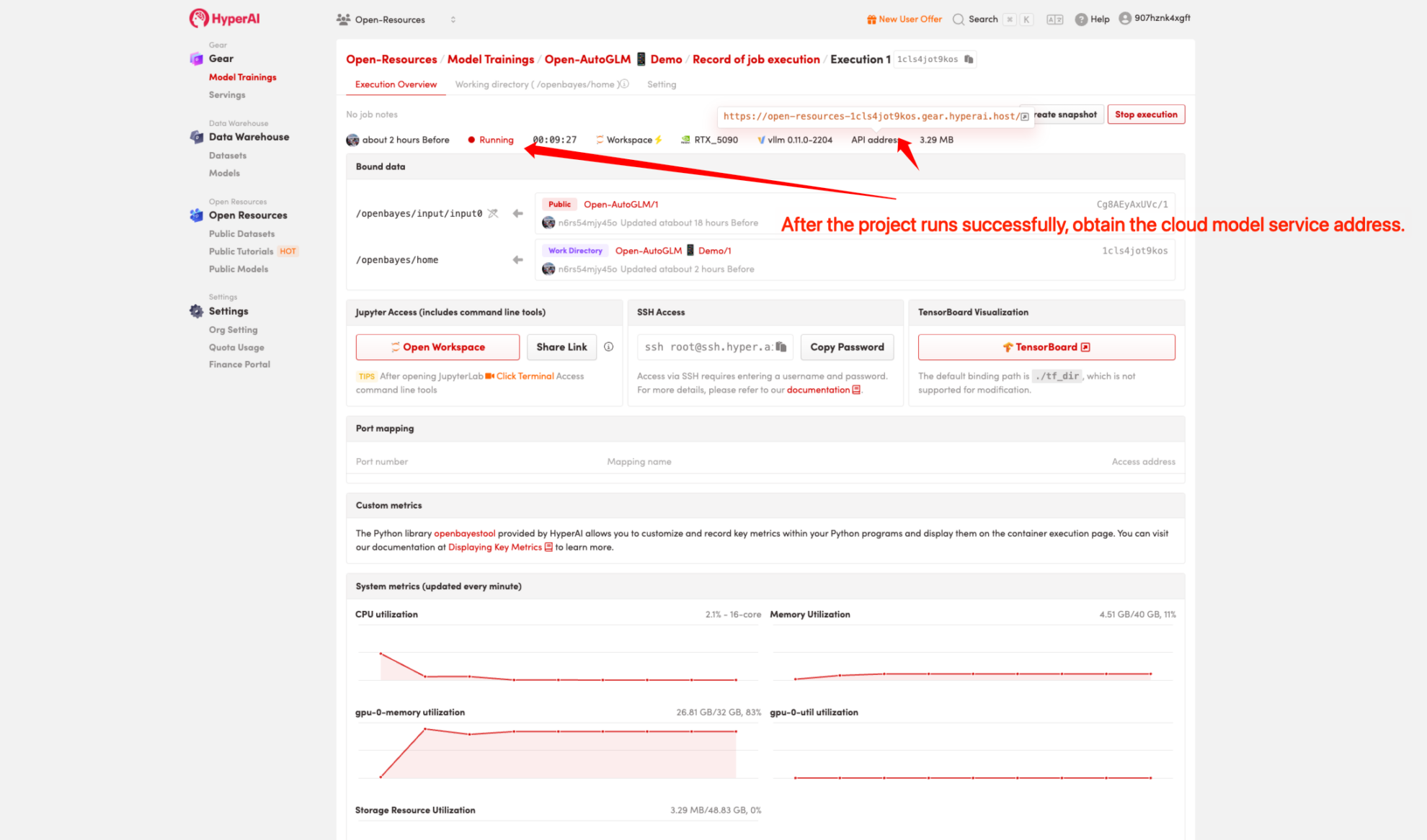
- base-urlModel service address, in the following format:
https://hyperai-tutorials-xxxx.gear-c1.openbayes.net/v1 - modelModel name, defaults to
autoglm-phone-9b
3. Configure the Android device
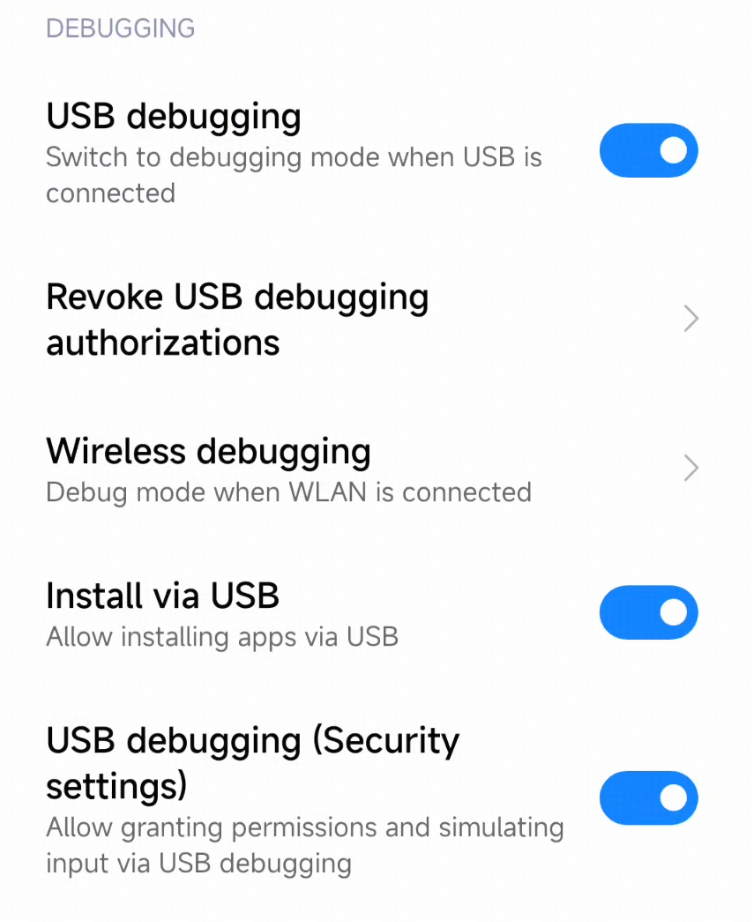
Step 1: Mobile device preparation
- Enable developer mode
- Enter
设置 > 关于手机 > 版本号 - Tap the version number rapidly about 10 times until you see the message "Developer mode is enabled".
- Enter
- Enable USB debugging
- Enter
设置 > 开发者选项 > USB 调试Check the box to enable. - For some models, a device restart is required for the changes to take effect.
- Enter
- Enable wireless debugging(Recommended for remote control)
- Make sure your phone and computer are on the same Wi-Fi network.
- Enter
设置 > 开发者选项 > 无线调试Enable this option - The record displays the IP address and port number (e.g.)
192.168.31.70:39359)
- Allow simulated clicks(Some models require a SIM card)
- Enter
设置 > 开发者选项 > 模拟点击Enable this option
- Enter
Please carefully check the relevant permissions:
Step 2: Establish ADB connection
Method 1: USB connection
When connecting your phone and computer using a USB data cable, ensure the cable is capable of data transfer, not just a charging cable.
View connected devices
adb devices
Output example:
List of devices attached
ABC123456789    device
Method 2: Wireless connection (recommended)
Use the IP address and port displayed in the phone's wireless debugging settings.
adb connect 192.168.31.70:39359
Verify connection
adb devices
Output example:
List of devices attached
192.168.31.70:39359    device
device-id description:
device-idthat isadb devicesThe device identifier in the command output. When connected via USB, it is typically the device serial number (e.g., ...).ABC123456789When connecting wirelessly, the format is IP:port (e.g., ...).192.168.31.70:39359).
Step 3: Install ADB Keyboard
- Download the ADB Keyboard installation package.
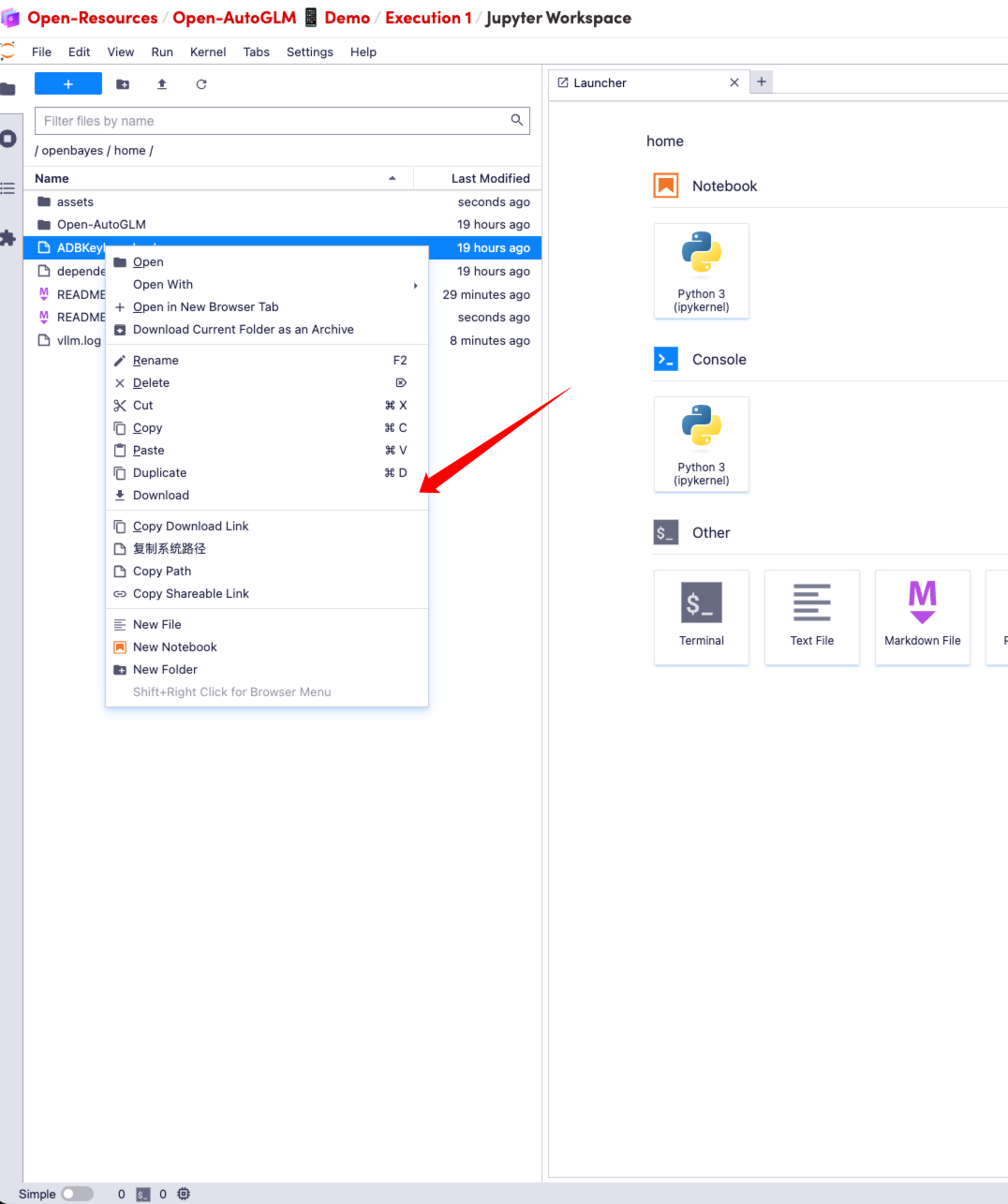
- Install the APK on your phone.
adb -s <device-id> install path/to/ADBKeyboard.apk
- Enter
设置 > 输入法or设置 > 键盘列表EnableADB Keyboard(Some phone models may require a device restart)
2. Getting Started with AutoGLM
Preparations before startup
- Keep your phone screen on and unlocked.
- Ensure the ADB connection is working properly.
adb devices(The equipment can be seen)
Interactive mode operation
Method 1: USB connection
python main.py \
  --device-id ABC123456789 \
  --base-url https://hyperai-tutorials-xxx.gear-c1.openbayes.net/v1 \
  --model "autoglm-phone-9b"
Parameter Description:
--device-idDevice identifier, fromadb devicesGet--base-urlThe cloud-based model service address, the API endpoint you deployed.--modelModel name, consistent with the model name used during deployment.
Method 2: Wireless connection (recommended)
python main.py \
  --connect 192.168.31.70:39359 \
  --base-url https://hyperai-tutorials-xxx.gear-c1.openbayes.net/v1 \
  --model "autoglm-phone-9b"
Parameter Description:
--connectDevice IP address, obtained from the wireless debugging page on the phone.--base-urlThe cloud-based model service address, the API endpoint you deployed.--modelModel name, consistent with the model name used during deployment.
After startup, enter the task in interactive mode, for example:
> 打开小红书搜索美食
> 打开淘宝搜索无线耳机
Execute the task directly
python main.py \
  --connect 192.168.31.70:39359 \  # 无线连接
  #--device-id ABC123456789 \  #USB 连接
  --base-url https://hyperai-tutorials-xxx.gear-c1.openbayes.net/v1 \
  --model "autoglm-phone-9b" \
  "打开美团搜索附近的火锅店"
5. Frequently Asked Questions
Device connection failed
# 重启 ADB 服务
adb kill-server
adb start-server
adb devices
Wireless connection lost
- Check if your phone and computer are on the same Wi-Fi network.
- Re-execute
adb connectOrder - Some devices require wireless debugging to be re-enabled after a reboot.
Text input is not working
- Confirm that ADB Keyboard is installed and enabled.
- examine
设置 > 输入法Has it been enabled in China? - For some models, a device restart is required for the changes to take effect.
Windows encoding issues
If you encounter UnicodeEncodeError gbk code mistake:
# 在命令前添加环境变量
set PYTHONIOENCODING=utf-8
python main.py ...
Screenshot failed (black screen)
This usually means the app is displaying sensitive pages (payment, password, banking apps). The agent will automatically detect this and request manual intervention.
Click operation coordinates are inaccurate.
The project is currently in the testing phase, and some app click operations may have coordinate deviations. If you encounter this issue, you can... GitHub Issues Provide feedback on specific applications and scenarios to help improve the model.

Citation Information
If you find our work helpful, please cite the following papers:
@article{liu2024autoglm,
  title={Autoglm: Autonomous foundation agents for guis},
  author={Liu, Xiao and Qin, Bo and Liang, Dongzhu and Dong, Guang and Lai, Hanyu and Zhang, Hanchen and Zhao, Hanlin and Iong, Iat Long and Sun, Jiadai and Wang, Jiaqi and others},
  journal={arXiv preprint arXiv:2411.00820},
  year={2024}
}

@article{xu2025mobilerl,
  title={MobileRL: Online Agentic Reinforcement Learning for Mobile GUI Agents},
  author={Xu, Yifan and Liu, Xiao and Liu, Xinghan and Fu, Jiaqi and Zhang, Hanchen and Jing, Bohao and Zhang, Shudan and Wang, Yuting and Zhao, Wenyi and Dong, Yuxiao},
  journal={arXiv preprint arXiv:2509.18119},
  year={2025}
}
Notebook Overview
Level
Build AI with AI
From idea to launch — accelerate your AI development with free AI co-coding, out-of-the-box environment and best price of GPUs.